Usage
Try the example scene and add Rich FX effects to a Volume.
Complete installation first so HDRP knows where to render the effects.
Try the example scene
Open the included scene:
Assets/InanEvin/Rich FX - HDRP Post Processing/Examples/ExampleScenes/RichFXExampleScene.unityThe scene includes its own sample geometry, materials, lighting and camera. Browse the effects with the on-screen controls, or expand the Rich FX object to inspect its category and combination Volumes.
Demo controls
Click the Game view to give it focus.
| Control | Action |
|---|---|
| Category dropdown | Select an effect category. |
| Next / Previous buttons or Right / Left Arrow | Browse effects. |
| 4 / 5 / 6 | Select the Security Camera, Underwater or Weapon Camera combination. |
| 7 | Return from a combination to individual effects. |
| Hold right mouse and move the mouse | Look around. |
| WASD while holding right mouse | Move the camera. |
| Shift while moving | Move faster. |
Legacy input, New Input System and Both are supported; Both prefers the new backend. See demo input setup if controls are unavailable.
Use the example profiles
The package includes Volume profiles for each category and a profile containing all effects:
Assets/InanEvin/Rich FX - HDRP Post Processing/Examples/VolumesAssign a profile to the Profile field of a Volume component. Duplicate a profile before editing it if you want to preserve the supplied preset.
The Combinations subfolder contains the Security Camera, Underwater Sea, and Weapon Camera profiles.
Add an effect to your scene
- Select an existing Volume, or add a Volume component to a GameObject.
- Assign a profile, or select New to create one.
- For a scene-wide effect, enable Is Global and set Weight to
1. - Select Add Override > Rich FX, then choose a category and effect.
- Enable the override checkboxes beside the parameters you want to change. Set an intensity or amount above zero, or enable the effect’s own Enabled parameter where provided.
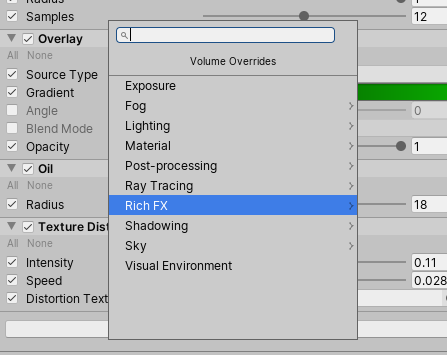
Each effect guide includes a preview and parameter descriptions. Multiple overrides can share a Volume profile; their rendering order is controlled by HDRP’s custom post-process lists.
If an effect is invisible
Check that the effect is registered at the correct injection point, that your camera’s Volume Layer Mask includes the Volume’s layer, and that post-processing is enabled for the camera. Also check the Volume weight and parameter override checkboxes. Some effects need multiple parameters to be nonzero; see the activation notes in the effect reference.